Harmony

Customers. Products. Work to do.

Orders, materials and production, connected.

  • Select the product.
  • Review its bill of materials.
  • Plan the work.
  • Review shortages.

Harmony

Your business, in harmony.

Manage customer orders, product recipes, stock and purchasing. Track production and supplier returns, with accounting exchanges through Intuit® QuickBooks® Online.

01 · The details

Plan around each customer’s requirements.

An order may call for a different product, quantity or packaging. Review the product definition, material requirements and production work for that order.

  • What the customer needs

    Product, quantity and packaging specified for the order.

  • What you need to make

    The product variant, bill of materials and version to use.

  • What materials it requires

    Components needed, stock available and shortages to review.

  • What production needs to know

    The work to carry out and the requirements to follow.

The platform

Orders, materials and production in one place.

Explore sales, inventory, production and purchasing, with shared customer and supplier records, team boards and accounting connections.

  1. 01 · Inventory

    See stock by location.

    Review stock by location, movements, reservations and material shortages.

  2. 02 · Production

    Assign crews. Follow production.

    Assign crews, follow operations and record produced quantities, scrap and batch numbers.

  3. 03 · Sales & customers

    Quote. Order. Invoice.

    Convert quotes to sales orders, generate quote PDFs and manage invoices with their customer and line details.

  4. 04 · Purchasing

    Compare suppliers. Record deliveries.

    Compare supplier quotes when enabled, create purchase orders and record partial or complete receipts. Prepare supplier bills and returns.

  5. 05 · Intuit® QuickBooks® Online

    Connect operational records with accounting.

    Explore configured customer, supplier, item, invoice and bill connections with Intuit® QuickBooks® Online software.

  6. 06 · Projects and team boards

    See the work on a board.

    Organize tasks by status and keep notes, checklists and attachments with the work.

  7. 07 · Customers and suppliers

    Customer and supplier details with the transaction.

    Use customer and supplier records across quotations, orders and purchases.

  8. 08 · Distributor requests

    Connect a catalog request to Sales.

    Explore the specified enrolled-distributor path from published products to a quotation request and Sales review.

  9. 09 · Quality & supplier returns

    Record the defect. Follow the return.

    Record defects against received items, prepare supplier returns and mark them shipped.

02 · The flow

One record. Every team.

Watch one customer order move through Kazu. Each team adds its part to the same record. Nobody types the customer, product or quantity again.

Quotation

QUO-1042

Sent

Sales order

SO-1042

Confirmed

Bill of materials · v2

BOM-1042

1 shortage

Purchase order

PO-2207

Received

Production order

PRD-1042

Completed

Invoice

INV-1042

Linked
Customer
Demo customer
Product
KIT-100 · Coating kit
Quantity
30 kits
Same record
ItemQtyUnitAmount
KIT-100 · Coating kit3042.001,260.00
TotalUSD 1,260.00
Quote PDF generatedCustomer record Demo customer

Quotation

QUO-1042

Sales order

SO-1042

  • Customer, product and quantity carried over
  • Sales reviewed the BOM and stock, then confirmed
  • Pro forma PF-1042 kept as a read-only record
  • Stock reservation follows your fulfillment rules

ResinBase blend · sub-assembly

20 of 27 kg

PigmentBase blend · sub-assembly

3 kg · in stock

ActivatorProduct with active BOM

15 kg · in stock

Container + labelPackaging

30 ea · in stock

Resin for 30 kits: 30 × 0.90 kg = 27 kg required − 20 kg in stock = 7 kg short

Supplier A · quote

USD 3.85 / kg

Delivery in 9 days

Purchasing’s choice

Supplier B · quote

USD 4.10 / kg

Delivery in 4 days

Resin · receipt recorded7 of 7 kg
Partial or complete receiptsSupplier bill prepared
WeighMixFillLabel
30of 30 kits produced
Crew
Mixing crew A
Scrap
0.4 kg
Batch
B-1042-01
Payment status from the linked documentOpen
Account mappingsSync history and errors

03 · Bill of materials

Build a multi-level bill of materials.

Combine production and packaging components with reusable product BOMs or inline sub-assemblies.

01 / 06

Start with the finished product.

Choose the finished product and name its bill of materials.

KIT-100Coating kitVersion 2 · Draft
02 / 06

Add components and packaging.

Add production and packaging components. Include products that have an active bill of materials.

  • Base blend Production
  • Activator Active product BOM
  • Container + label Packaging
03 / 06

Open the next level.

Use a product with its own active BOM or create an inline sub-assembly section. Inspect the components inside it.

  • Coating kit
  • ↳ Base blend
  •  ↳ Resin
  •  ↳ Pigment
  • ↳ Activator · Active BOM reference
  •  ↳ Accelerator
  •  ↳ Pigment
  • ↳ Container + label
  •  ↳ Box 5x5x5
  •  ↳ Label 3x4
04 / 06

Set quantities and units.

Set component quantities in their item units, with scrap allowances and tolerances.

  • Base blend 1.00 kg
  • Activator 0.50 kg
  • Container + label 1 ea
05 / 06

Check quantities for production.

Scale the BOM for a production quantity. Compare component requirements with stock on hand.

30 kits · Resin27 kg required20 kg in stock7 kg short · Example requirements snapshot
06 / 06

Review and activate the version.

Check the draft and activate it manually when it is ready. Create a new version when the recipe changes.

Draft→Manual review→Active

New versions keep product definitions separate.

kazuSOURCE RECORD
INVOICES

INV-1042

Document numberINV-1042
CustomerDemo customer
Line quantity30 × KIT-100 · Coating kit
Example totalUSD 1,260
Example business record
Intuit® QuickBooks® OnlineLINKED RECORD
ACCOUNTING INFORMATION

Linked invoice

Document numberINV-1042
CustomerLinked customer
Line quantity30 × KIT-100 · Coating kit
Example totalUSD 1,260
Illustrative mapped information

05 · Inside Kazu

A look inside Kazu.

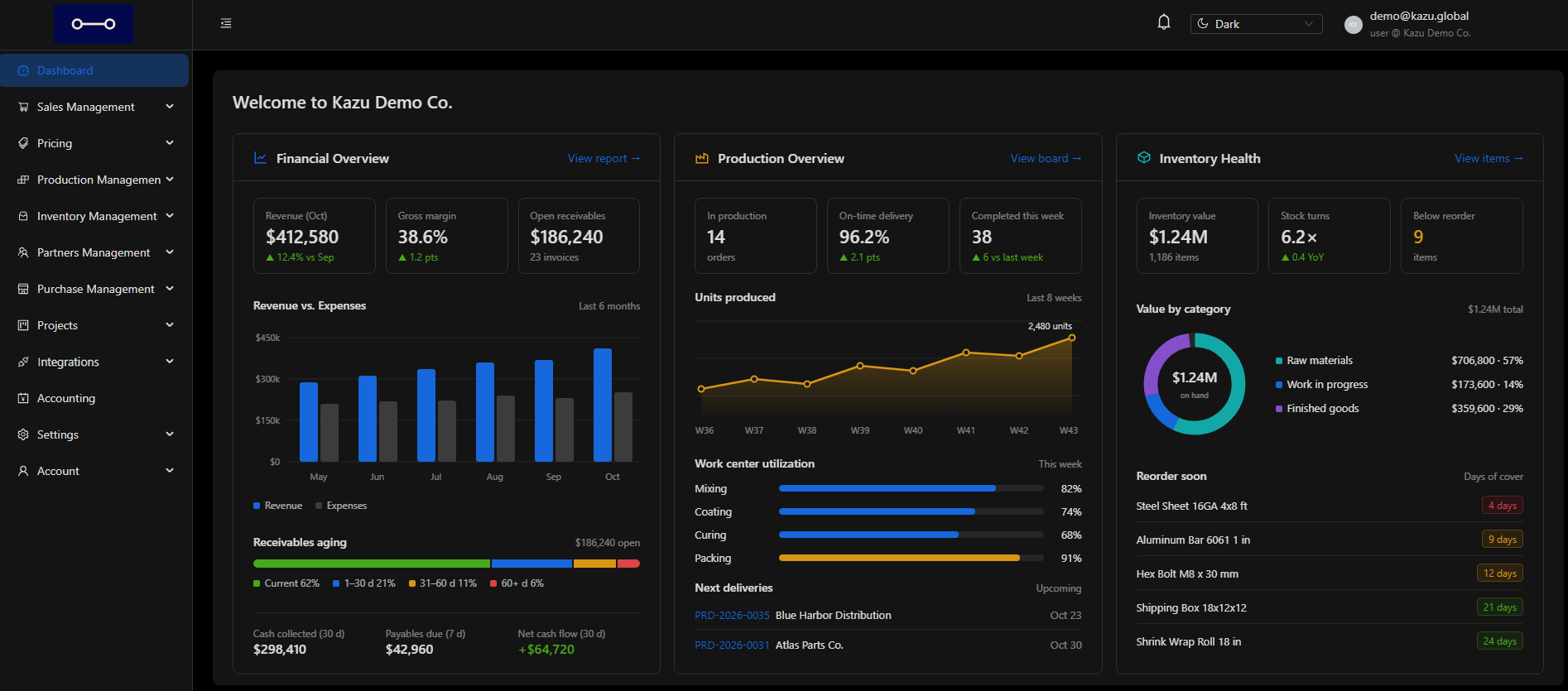
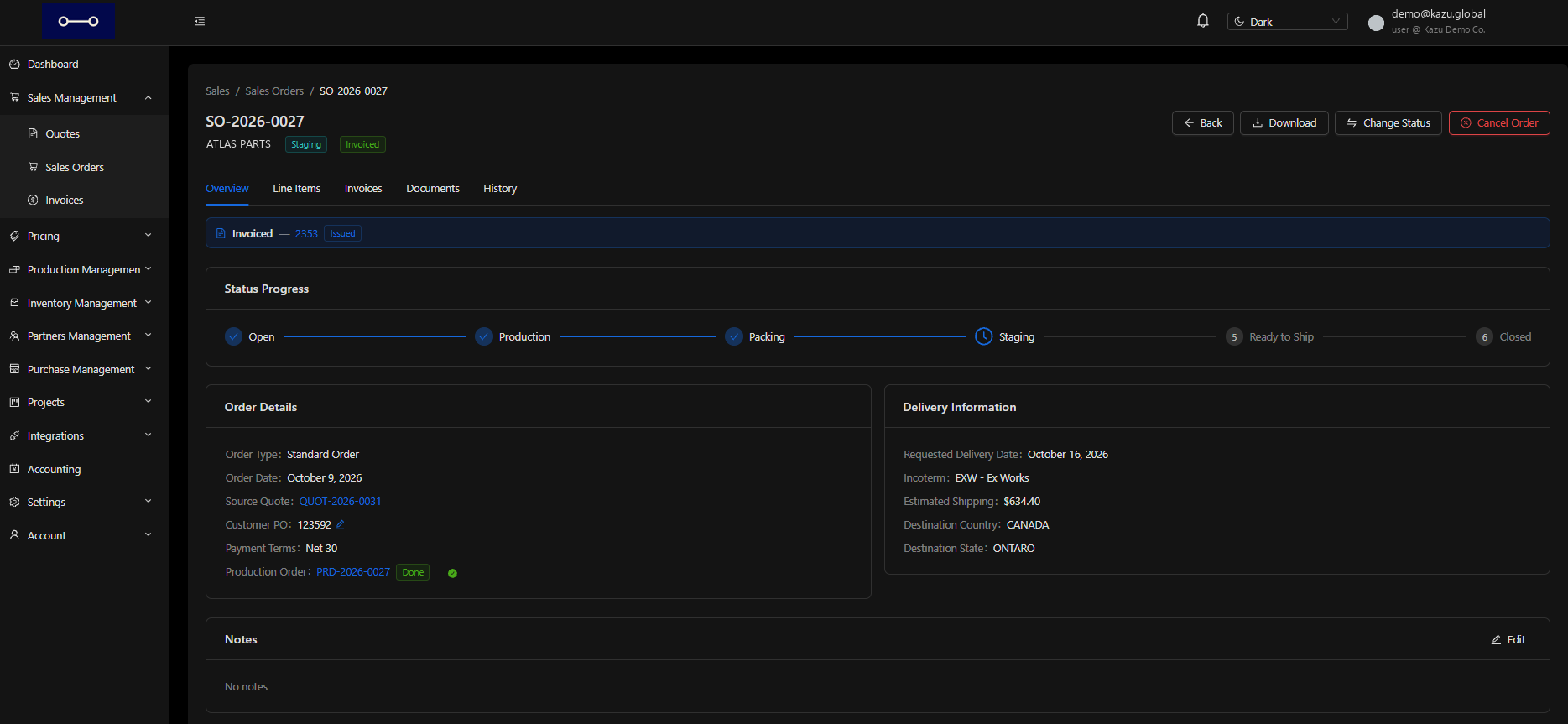
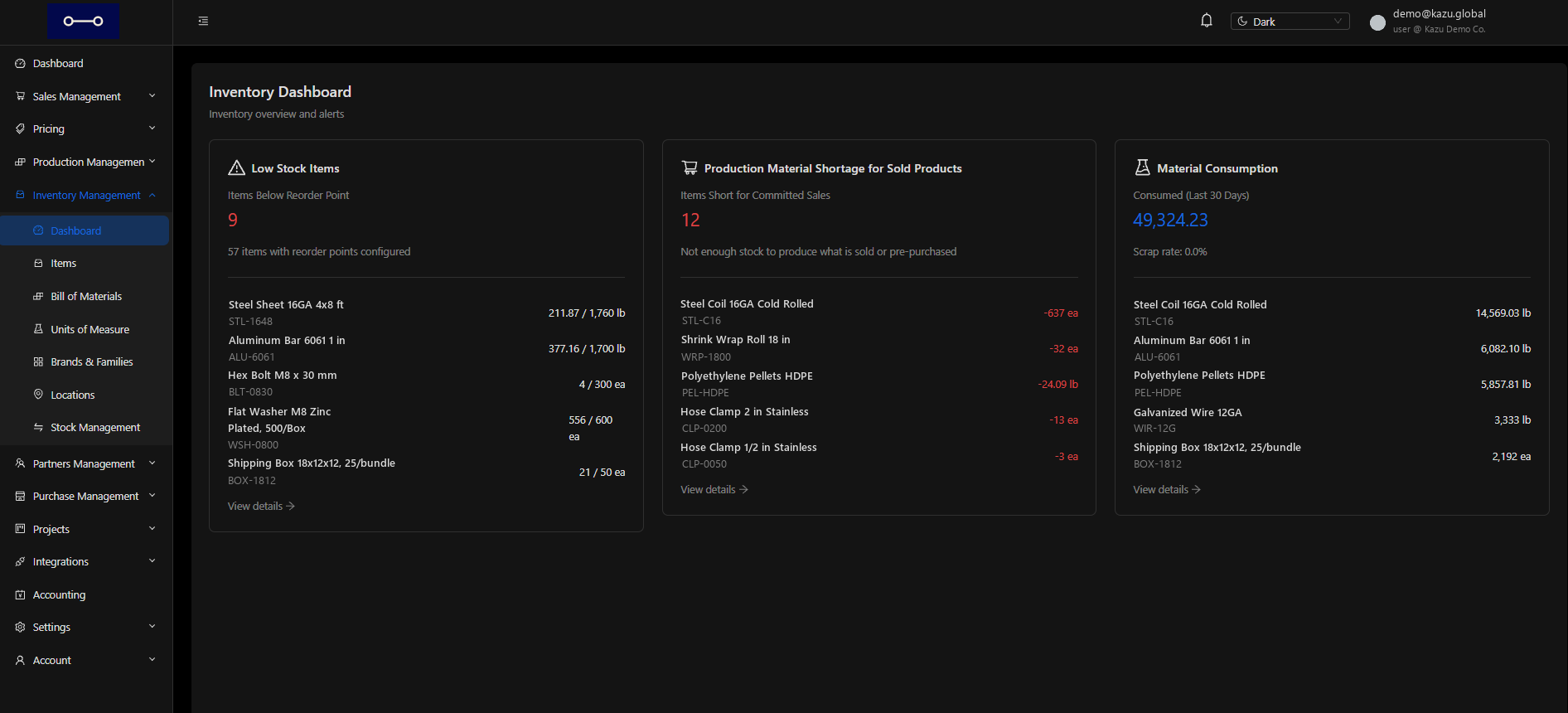
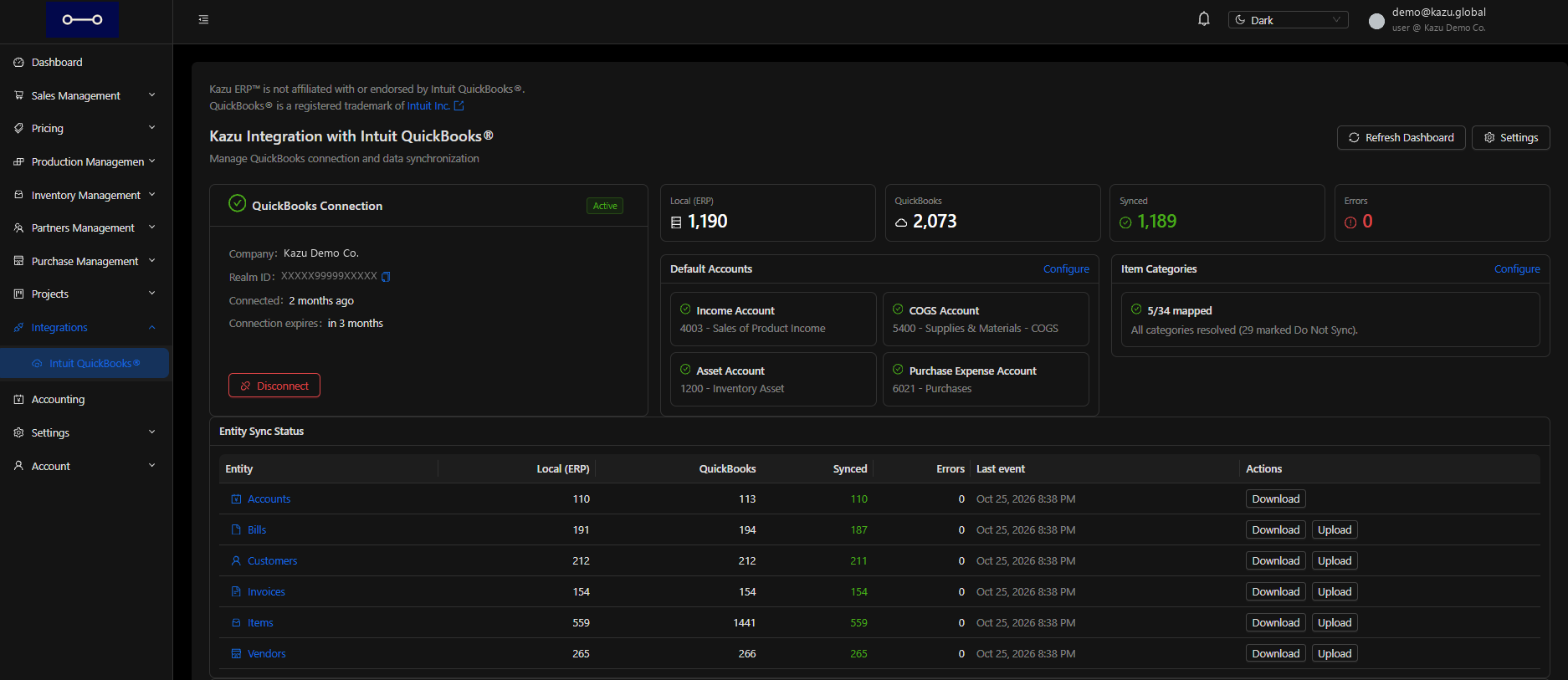
Dashboard, sales orders, inventory and Integrations, shown with demo company data.

Kazu main dashboard with financial overview, production overview and inventory health for a demo company.
Kazu sales order with a status tracker, linked invoice, order details and delivery information.
Kazu inventory dashboard listing low stock items, material shortages for sold products and material consumption.
Kazu integrations dashboard showing connection status, default accounts and entity sync counts.

Dashboard. See revenue, production and inventory health in one place.

Sales orders. Review order status, invoice and delivery details.

Inventory. Spot low stock, material shortages and consumption.

Integrations. Check the connection, account mappings and sync status.

06 · Who it's for

For small manufacturing teams.

Harmony in everyday work.

  • Owners

    Review orders, material needs, purchases and production status.

  • Production

    Work with bills of materials, components and production orders.

  • Sales & purchasing

    Manage customer quotes, supplier orders, invoices and bills.

07 · Questions

Straight answers.

Request a demo
Who is this demo for?

Small manufacturing teams exploring how to manage sales orders, inventory and production in Kazu.

What can I see in the demo?

Explore quotes and orders, multi-level BOMs, stock and purchasing, production, supplier returns and Intuit® QuickBooks® Online exchanges. Tell us which workflow matters most to your team.

What can I define in a bill of materials?

Use production and packaging components, products with active BOMs and inline sub-assemblies. Set quantities in item units, required or optional components, scrap allowances and tolerances. Keep density and mixing references, images and notes with the BOM. Import component lines into a draft and create new versions as the product changes.

Does Kazu connect to Intuit® QuickBooks® Online?

Kazu connects with Intuit® QuickBooks® Online software for supported invoice, bill and record exchanges. A connected account and mapping setup are required. Intuit® QuickBooks® Online remains the accounting system.

How do I ask about pricing, setup or support?

Include your pricing, setup or support questions in the demo request.

Can I bring my current workflow?

Tell us about your products, materials and order process. Use the demo to ask how those requirements would be handled in Kazu.

What happens after I request a demo?

Our sales team will email you to arrange a time and discuss what you want to see. Sending the request is the first step in scheduling.

08 · Request a demo

See your business in harmony.

Choose a focus: BOMs, sales and production, purchasing, supplier returns or accounting integration. Our sales team will email you to arrange the walkthrough.

Read our Privacy Policy.

Thanks, . Your demo request has been submitted. Our sales team will email you to arrange a time.